Updated April 2026: the original guide had four terminal commands. I’ve since built a plugin called Techie that replaces them. Rewritten end-to-end.
Someone in a private founders’ group I’m in went back to ChatGPT because the terminal hurt their eyes – the fonts, the lack of visual hierarchy, the clipboard not working how they expected. Another asked whether Claude Code was even worth the effort for non-techies, while watching everyone else rave about it.
Claude Code is built for developers. It assumes you want to write code, know what a ‘working directory’ is and understand technical jargon. So I built a plugin called Techie that replaces all of that with plain English. Same power underneath (persistent memory, connected documents, custom workflows) minus the developer assumptions.
I had them both introduce themselves:
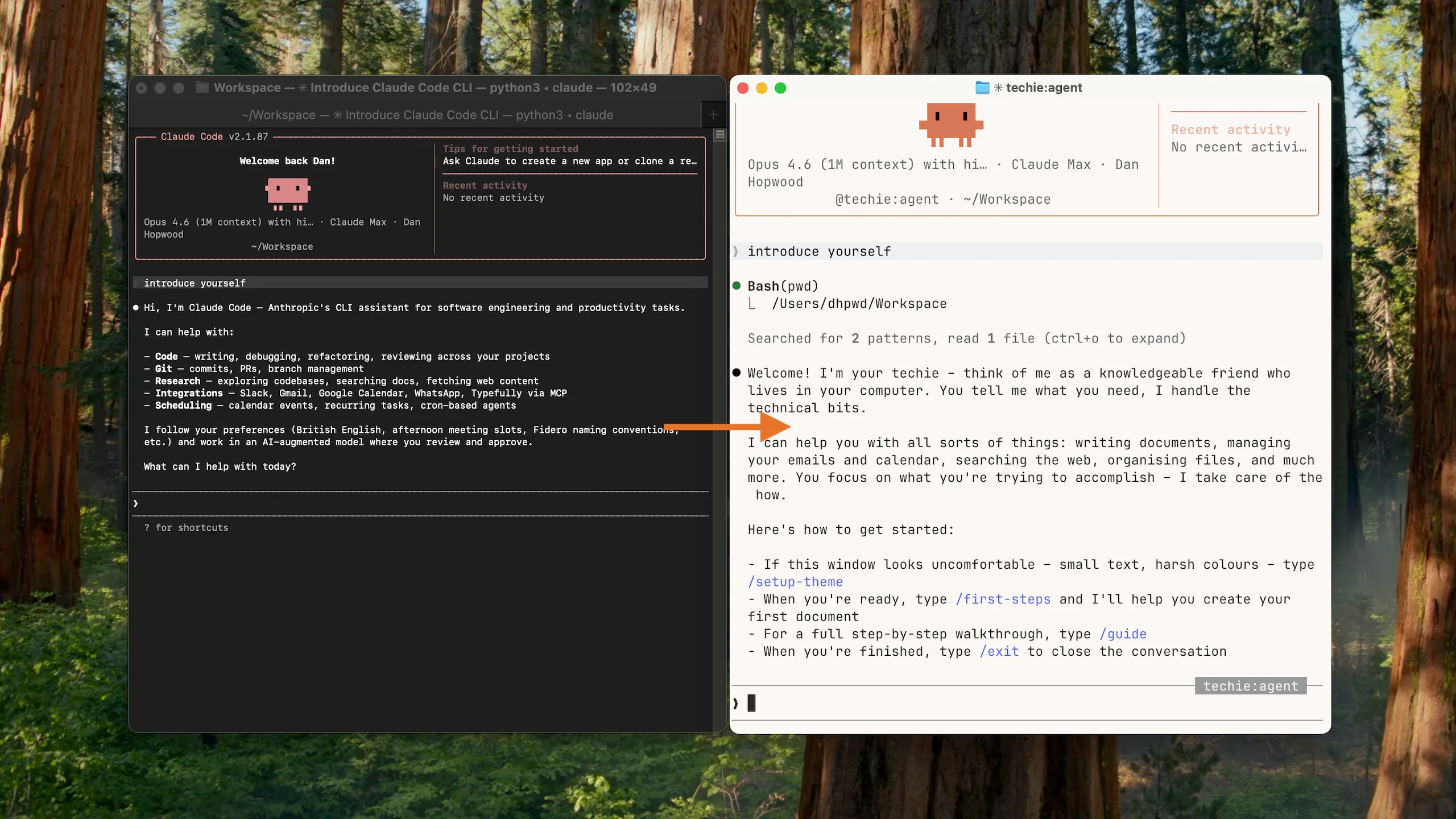
The one-thread trap
If you use ChatGPT or Claude, you probably have one long conversation thread for each project. You keep going back because each one has all the history and starting fresh means explaining everything again.
Those threads get worse without you noticing. AI chats have a ‘context window’: a limit on how much the model holds at once. As the conversation grows, the model drops older messages and nothing tells you. The things you told it three weeks ago are gone. And the longer the thread, the worse it handles everything, including what you said five minutes ago.
Claude Code works differently. Your company context lives in files on your computer, not in a chat thread. A memory file loads at the start of every session. Close a conversation, open a new one and you lose nothing. Starting fresh is better – clean reasoning, full context, every time.
No more re-explaining. That’s the reason to bother.
For the technical deep version (a structured 5-file memory system I use on coding projects) see the memory bank framework. And if you’re weighing up Cowork vs Claude Code, I wrote about that too – this guide is about getting set up.
What you’ll have in 15 minutes
Paste one command, answer a few questions about your business and walk away with:
- A strategy document on your computer (not trapped in a chat thread)
- A memory system so every future session starts knowing your business
- A checkpoint system for saving your work
- An assistant that remembers where you left off
None of this needs terminal skills. Three pasted commands, start to finish. Everything after that is a conversation.
Install
You need a Claude Pro ($20/month), Max, Team or Enterprise subscription. If you don’t have one yet, create an account at claude.ai. It’ll ask you to choose between Chat, Cowork and Code – pick any of them. Claude Code authenticates through your subscription regardless.
Open Terminal (Cmd+Space, type “Terminal”, hit enter), paste this and hit enter:
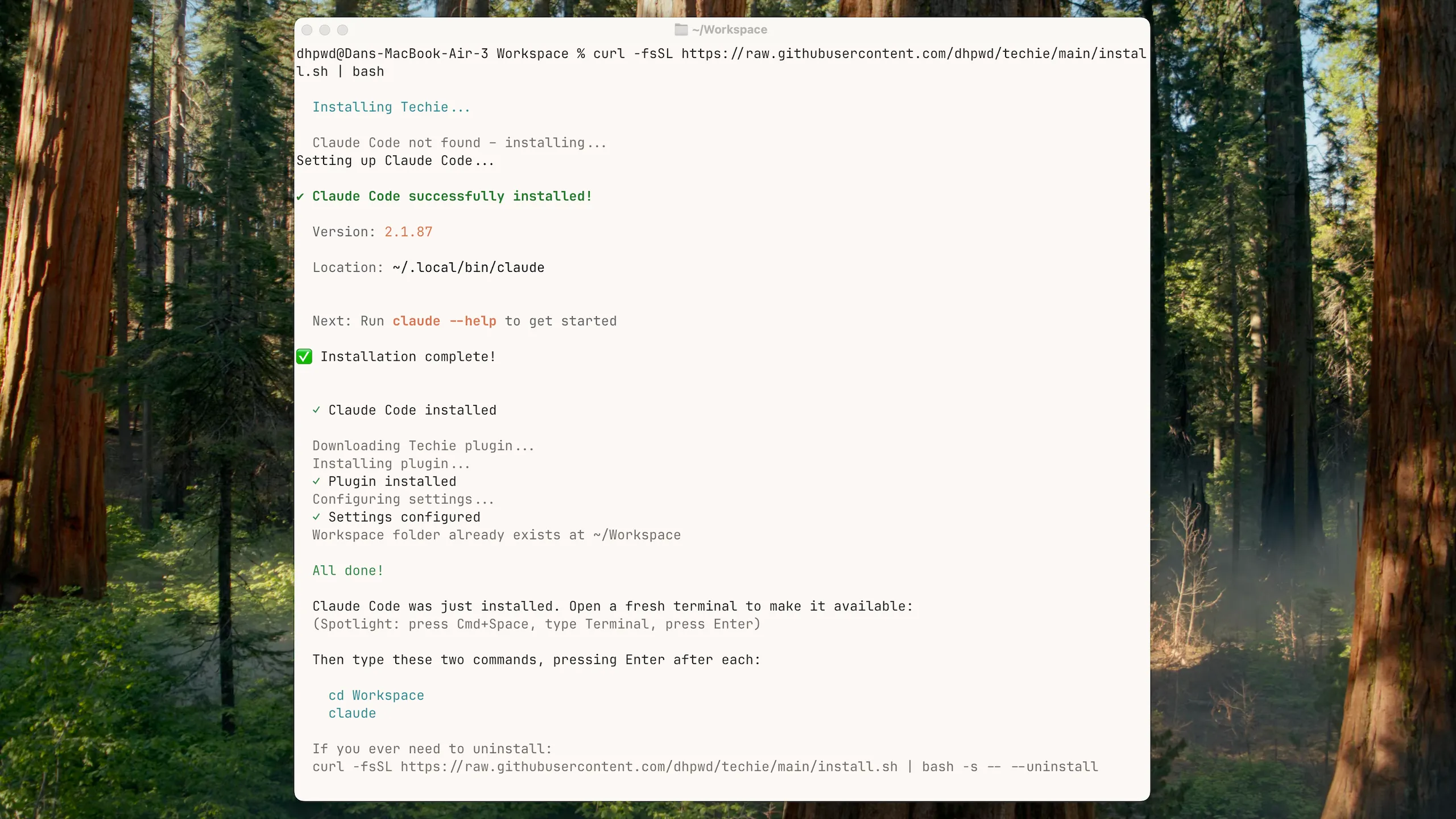
curl -fsSL https://raw.githubusercontent.com/dhpwd/techie/main/install.sh | bashThis installs Claude Code and Techie, creates a Workspace folder and pre-configures the settings so routine actions (reading files, saving work) don’t stop to ask permission every time. A safety check runs in the background and reviews anything risky before it goes ahead.
If Claude Code wasn’t already on your machine, the installer will tell you to open a fresh terminal window – your computer needs a new one to recognise the new command.
Windows: The installer is Mac and Linux only. Install Claude Code via PowerShell (irm https://claude.ai/install.ps1 | iex), then install the Techie plugin manually. The installer normally creates your Workspace folder, so make it yourself: mkdir Workspace. Same experience once it’s running.
Your first session
Type these two commands, pressing enter after each:
cd Workspace
claude
The first time you launch Claude Code, four setup prompts appear. They go fast:
- Theme – pick light or dark text. Whichever looks better
- Login – select your Claude subscription
- Security – press enter to continue
- Terminal setup – say yes
Once you’re in, type /first-steps.
What follows is a conversation. Techie asks what you’re working on – a business, a project, an idea. Then it asks focused questions, one at a time: who’s it for? What’s the biggest thing you’re trying to figure out? What’s already working? What keeps getting stuck?
Answer the questions. This is the good stuff – like working through a brief with a strategist, not filling in a template.
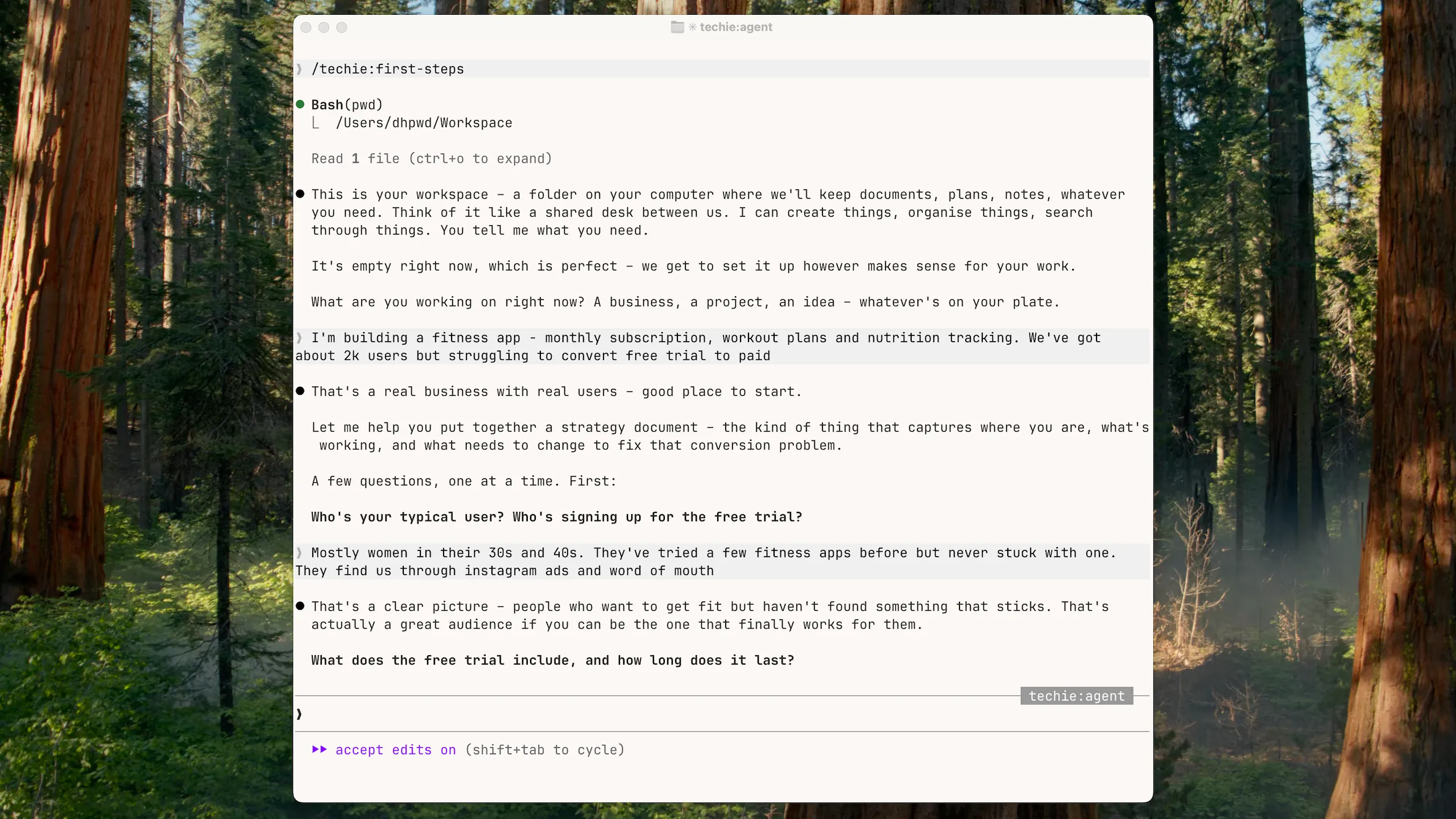
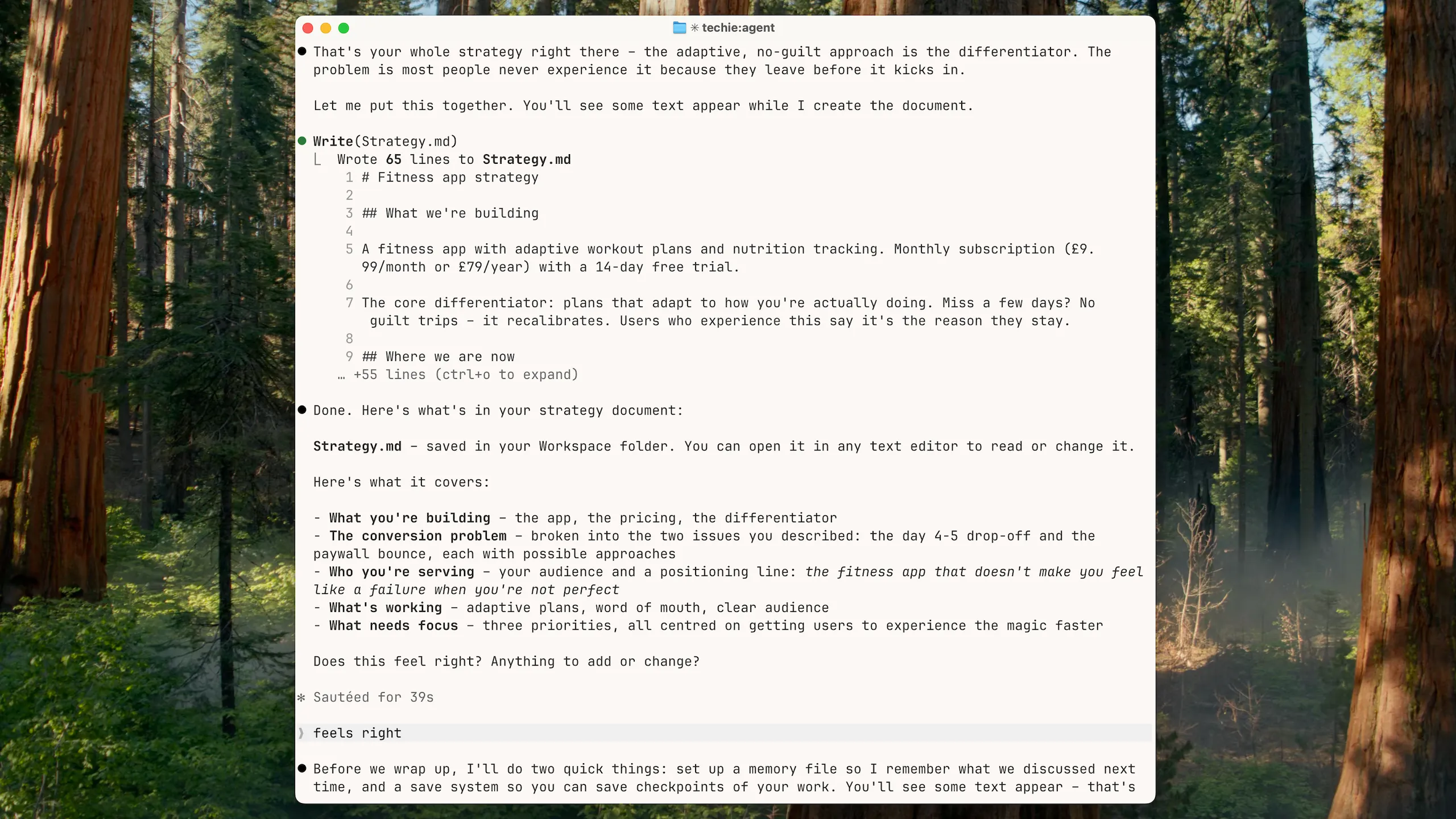
When it has enough, it creates your document – a strategy file, project brief or idea capture, depending on what you described. A real file, on your computer.
Then it sets up two things behind the scenes: a memory file so it remembers this conversation next time, and a checkpoint system so you can save your work.
Prove it to yourself
Type /exit. Open a fresh terminal. Then:
cd Workspace
claude
Say hello.
Welcome back. Last time we created your strategy document.
No pasting, no re-explaining – it picks up where you left off and suggests what to do next.
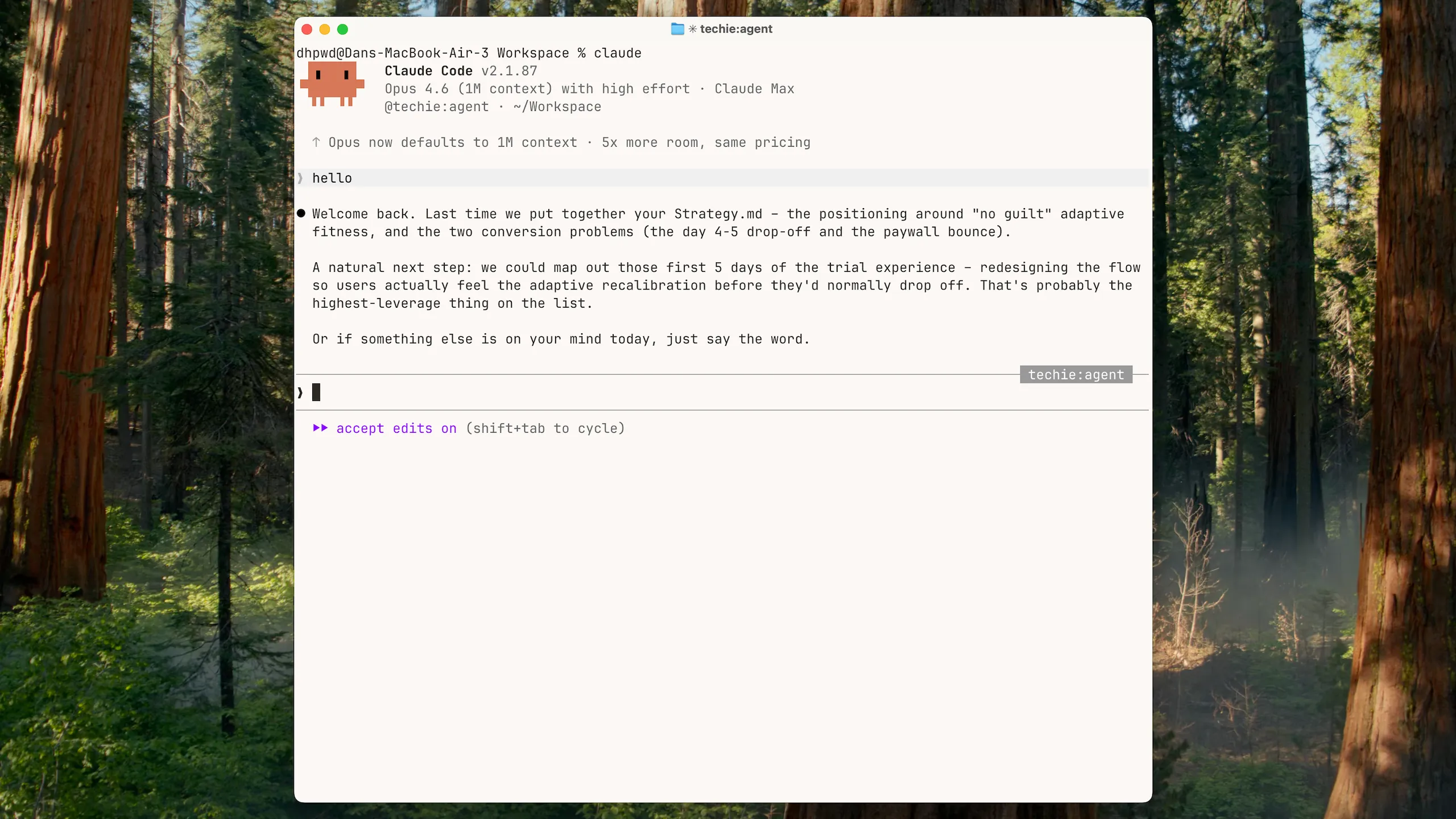
That’s what the fuss is about – not the terminal, the compound memory. Each session builds on the last and each document feeds the next.
See your work
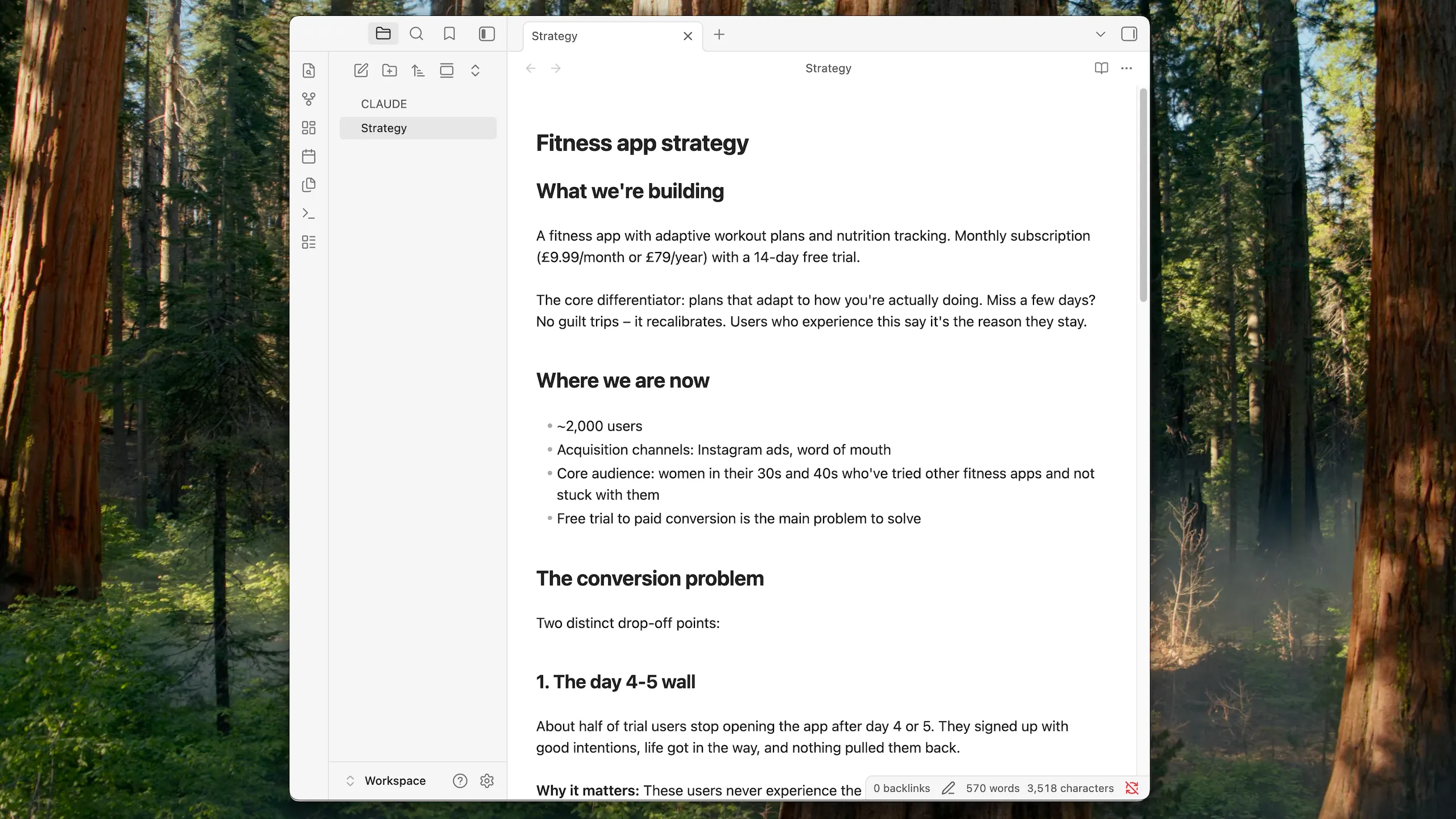
The documents Techie creates are markdown files – plain text with simple formatting. You can open them in any text editor, but there’s a nicer way.
Download Obsidian (free). Open it, choose “Open folder as vault” and point it at your Workspace folder (the folder itself, not a file inside it).
Your strategy document shows up, cleanly formatted, instantly browsable. As you create more documents, they all appear here.
The hump is behind you
The whole terminal part was three pasted commands.
If you want to learn your way around the terminal anyway, type /learn terminal basics and Techie will teach you interactively.
If the window still looks ugly, /setup-theme will sort it out – fonts, colours, the lot. That’s what produced the screenshot at the top.
A few more commands worth knowing:
/consult– describe what you need and Techie will ask the right questions before starting/save– checkpoint your work any time/learn– pick up new skills interactively/commands– see everything that’s available
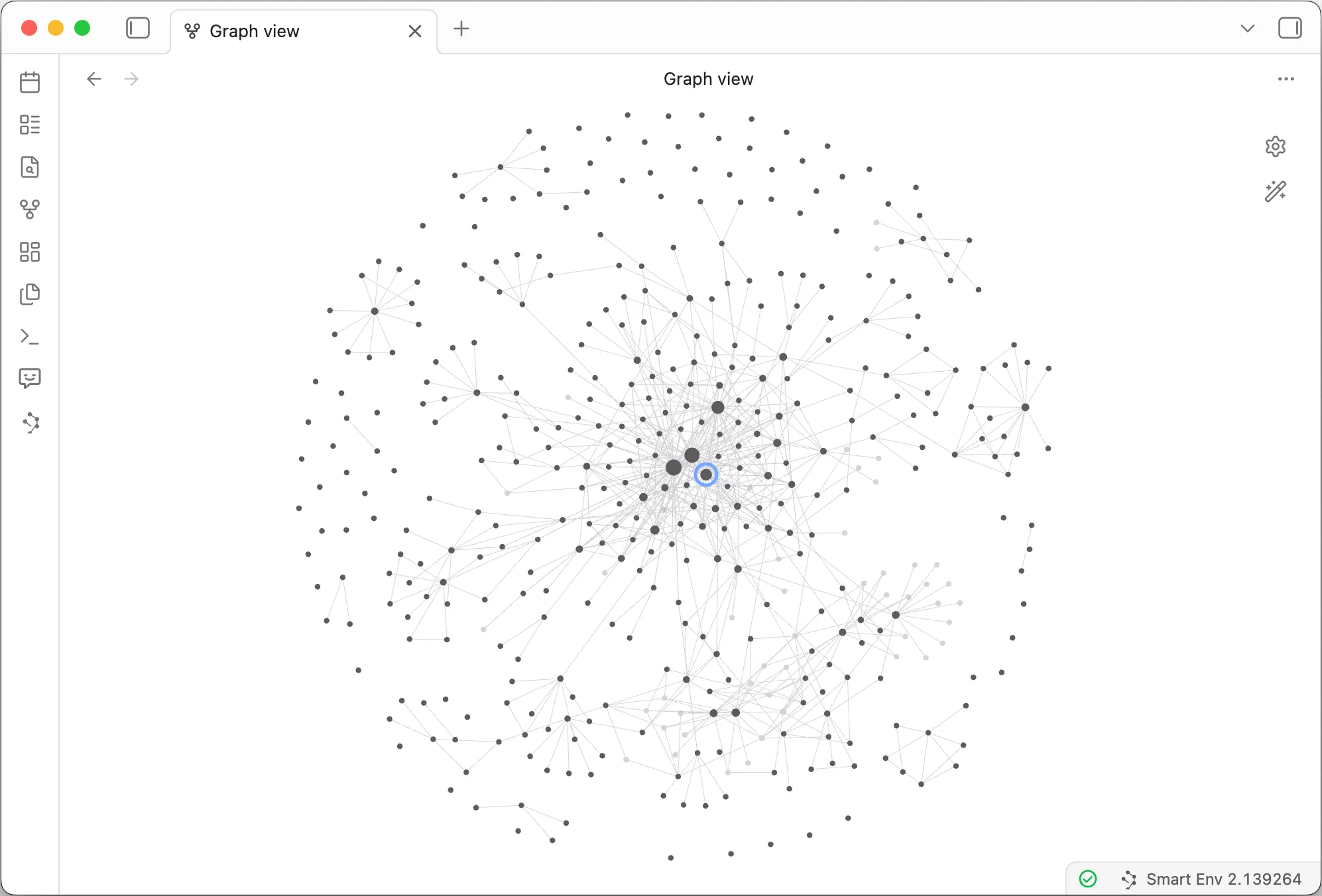
This is my Obsidian vault after nine months of working this way. Each node is a document, each line a connection. The blue circle is the first document I created – it’s still connected to everything.
It looks like a lot. It’s really the same idea as day one, just further along.